Instructions for Microsoft Outlook (all versions)
The generator sometimes fails in Edge browser. If you experience this please try running the tool in Google Chrome
1. Copy signature to clipboard
Wait for the "Copy rendered signature" button to be come active then click it to copy the signature to your clipboard. A pop up message will be shown to confirm this is sucessfull.
2. Outlook specific instructions
Creating a signature in Outlook (all versions)
3. Paste your new signature
Remove any conent in the signature editor then paste (CTRL + V) the Darral Macqueen signature you just created
Instructions for Gmail (and other web based email)
1. Copy signature to clipboard
Wait for the "Copy rendered signature" button to be come active then click it to copy the signature to your clipboard. A pop up message will be shown to confirm this is sucessfull.
2. Outlook specific instructions
Creating a signature in Gmail
3. Paste your new signature
Remove any conent in the signature editor then paste (CTRL + V) the Darral Macqueen signature you just created
Instructions for Apple Mail
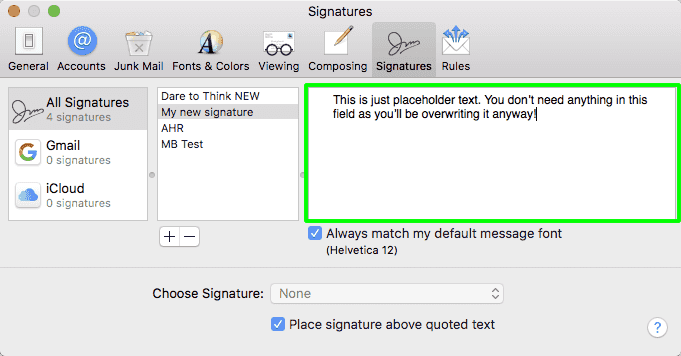
1. Create an empty signature in Apple Mail

Make sure the signature content is empty
Give your new signature a title and leave it at that (you don’t need to enter any text in the third (content) column, as you’ll be replacing this content later). Drag the signature (from the second column) on top of the email account you would like it to be associated with.
2. Disable font override
With your new signature selected in the middle pannel uncheck the option "Always match my defauly message font"

3. Copy signature to clipboard
Wait for the "Copy rendered signature" button to be come active then click it to copy the signature to your clipboard. A pop up message will be shown to confirm this is sucessfull
4. Paste signature into mac mail
Back in Mail, check you've selected the correct signature then use the mouse to select all of the content in the preview box
Right click and select "Paste" or use the keyboard and ⌘ + V